Please refer to this link 🔗 to see how to onboard as well as required consent during onboarding process.
How many devices can I onboard?
One user can onboard Max 4 devices (but no more than 3 in the same month). It is possible that, over time, a user may acquire new devices to onboard (presumably deleting the app from their old device that they might discard). In such a case, Tessellation will likely be unaware that the user has discontinued use and the user may max out their devices and find that he/she is unable to onboard. Please contact support@tessellationsoftware.com if this happens to you and we will be able to help discard from our servers those devices you are no longer using.
How to reset my app password or PIN
In the Preferences screen, at the top (where you see your name and username), press the '>' at right. Choose 'Sign in & Security'. On this screen, you will see options for 'Change Password' or 'Change PIN'. You can only change one at a time.
WARNING: We strongly recommend that you keep this password in a safe place AND allow it to be stored in your Keychain. We similarly recommend that you choose a PIN you remember. (Your PIN is not stored anywhere.) There is no way to recover your password (or PIN) if you forget. Without these, you will lose access to all your content. Our inability to provide you with your password (or reset option) is intentional. The purpose is for the extreme protection we accord your data in a "zero knowledge" manner. (If we could recover your password or offer a reset, a government could order us to provide them with your information. The fact that we are unable -- even under court order -- protects your data in all situations.)
Write your password down somewhere else!! Even if you keep it in your keychain, it is just in your device keychain -- not your global keychain. By using your Face Id to open Nandemo each time, you may not recall it years later if you lose your device. ← IN THIS CASE, YOU WILL LOSE ACCESS TO ALL YOUR NOTES!!
If you replace your device with a new one, you will need your app password and PIN to restore your content from Tessellation's servers to your new device and to decrypt these on your device. (Some people have separate [vs. sync'd] KeyChains on each device. If that is the case for you [i.e., if your Keychain with your saved passwords is not sync'd across multiple of your devices and/or with iCloud], if you lose your device or it is damaged and you had your Nandemo password stored only in the Keychain on, e.g., your iPhone, it will be gone and you will have to remember the one you used from, possibly, many years ago.) So, keep your App Password and PIN in a safe place. We regret that we cannot help you if you forget it and it is not recoverable by you.
What should I do if I forgot my Nandemo App password or PIN?
We strongly recommend that you keep this password in a safe place AND allow it to be stored in your Keychain. We similarly recommend that you choose a PIN you remember. (Your PIN is not stored anywhere.) There is no way to recover your password (or PIN) if you forget. Without these, you will lose access to all your content. Our inability to provide you with your password (or reset option) is intentional. The purpose is for the extreme protection we accord your data in a "zero knowledge" manner. (If we could recover your password or offer a reset, a government could order us to provide them with your information. The fact that we are unable -- even under court order -- protects your data in all situations.)
If you replace your device with a new one, you will need your app password and PIN to restore your content from Tessellation's servers to your new device and to decrypt these on your device. (Some people have separate [vs. sync'd] KeyChains on each device. If that is the case for you [i.e., if your Keychain with your saved passwords is not sync'd across multiple of your devices and/or with iCloud], if you lose your device or it is damaged and you had your Nandemo password stored only in the Keychain on, e.g., your iPhone, it will be gone and you will have to remember the one you used from, possibly, many years ago.) So, keep your App Password and PIN in a safe place. We regret that we cannot help you if you forget it and it is not recoverable by you.
How do I import my notes?
At this time, we have no mechanism to mass-import Notes. However, an .rtf or .txt file opened in the TextEdit App on your Mac can have their contents highlighted by you and you can Command-C on your Mac and Command-V in a new Note on your phone or iPad to copy its contents into a Note in your App. (Apple supports copyy-paste between devices with the same Apple Id that are connected to the same network.) You can also copy directly from another iPhone application that has your data and paste into a new Note in Nandemo, but the Notes need to be transferred one-at-a-time in this manner at this time until we develop an import facility.
Can I use Nandemo offline?
Nandemo is made for offline use. All content is stored on your local device and always edited and saved locally. It is always strongly encrypted -- even while on your own device.
Content is sync'd with Tessellation's servers only when you press the 'sync' icon (unless you have changed and saved content which is shared with other users, in which case, your app will automatically attempt to immediately sync and notify the devices of those you have shared with so that they know the information has changed and so that, if you have allowed others to edit your note, that they are not editing on top of stale information). If you have multiple devices (e.g., an iPhone and an iPad), and you want a note or other content that you have not shared to be available on your other device, make sure you press 'sync' after you save your changes and then press 'sync' on your other device.
What does manual syncing do and why do we have manual syncing vs. automatic?
Manual syncing (by pressing the icon) sends all your changes (heavily encrypted) to our server so that:
-Your other devices (if, e.g., you have an iPhone and iPad), can receive your notes/attached content
-Your notes and content are backed up (in case you lose/damage your device or buy a new one, your content can be restored)
-If you share your content with other Nandemo users, they can receive it in their app.
Your notes' content and attachments are stored in a "zero-knowledge" manner, where, although this information is on our server, it is encrypted in a manner where only you and those you share with have access to the decrypted content.
We do not automatically sync with every saved change because it keeps our (and, consequently, your) costs down. Syncing every saved change would mean that all our users would constantly be attempting to contact our servers with every small change and save. Consequently, we would need many more servers to handle the same number of users. So, we rely on our users to sync when they feel they have made substantial changes. The one exception: When you save a change to a shared note (whether your own or to a note that someone else has shared with you), it is automatically syncd so that all users can receive it and to avoid conflicts if you have given permission to shared-with users to edit your note. (Our server notifies all users of a shared note whenever any user makes changes to that note and will automatically sync if they are connected to internet when they launch Nandemo.)
Can I export my notes?
We provide the capability to export any Notes/attachments to your Notes. When you select a note from the Preview Screen and are in 'View Mode', you can press the 'tray with up-arrow icon' on the upper right and this provides you with many sharing options:
-You can air-drop your Note and any attached media/documents to your Mac so you can edit it there.
-You can email your Note and its attached media/documents to anyone (including yourself).
-You can send this via iMsg, WhatsApp, etc.
Each extract of a Note produces its own .zip that contains your note in 2 formats: -A .txt file: Has just the Title and contents in plaintext. -A .rtf file: With full header and contents the way it appears in Nandemo. Either of these can be edited with WordPad on a Windows computer or with the TextEdit App on your Mac. The .zip file also contains two files for every attached media or document the note has attached to it: -One file for each attachment is the attachment itself (e.g., a .jpg) -The other file is a .rtf containing the header that identifies Title, owner, creation date, etc.
When are the Windows(PC) and OS/X(Mac) versions of the app coming?
We are currently working on these, and extimate release in Q2 2027.
Subscription
What is the difference between 'renew' and 'restore'?
From a functionality perspective, Renew and Restore serve different purposes:
Restore is intended for users who already have an active paid subscription associated with their Apple ID and want to activate that subscription on a new device or reinstall the application. In this case, the app retrieves the subscription information from Apple's servers and reactivates the user's existing subscription without requiring a new purchase.
Renew is intended for users who want to purchase or re-purchase a subscription plan. This includes cases where: The user's subscription has expired and they wish to continue using the same plan. The user wants to increase their storage/data allocation by selecting a different plan. The user intentionally chooses to purchase a plan again while their current subscription is still active.
Regarding the scenario where a user presses Renew while an existing subscription is still active, Apple handles the billing calculations automatically. Apple prorates the remaining subscription value, applies the appropriate credit or refund, and activates the new subscription immediately. This aligns with your previous production experience where you were charged for the new subscription and subsequently received a partial refund for the unused portion of the prior subscription. There are also some additional Apple subscription behaviors worth noting: If a user upgrades to a higher-tier subscription before the current subscription expires, Apple calculates the unused portion of the existing subscription, applies the appropriate credit, and activates the upgraded plan immediately. If a user downgrades to a lower-tier subscription, the downgrade does not take effect immediately. Instead, the current subscription remains active until its expiration date, after which the downgraded plan becomes active.
In short, Click 'Restore' when you already have a paid subscription and you are activating it on a new device. Click 'Renew' when your subscription has expired, your payment method has been updated, or you wish to purchase or change your subscription plan.
What happens if my credit card is expired?
Apple may display a message such as “There’s a billing problem with a previous purchase” or “Your payment method needs to be updated.” Apple will usually send an email notifying you that a payment could not be processed. You would not be able to download or update apps from the App Store until the payment issue is resolved. If your subscription renewal payment fails, your subscription may expire unless you update your payment method.
To resolve this: Open Settings → [Your Name] → Payment & Shipping and update your payment method, or manage it through the App Store.
How do I unsubscribe?
You can cancel your subscription at any time through your Apple account:
Open the Settings app on your iPhone or iPad. Tap [Your Name]. Tap Subscriptions. Select. Tap Cancel Subscription and follow the on-screen instructions. Note: Uninstalling the app does not cancel your subscription. After cancellation, you can continue using your subscription until the end of the current billing period. No further charges will be made unless you subscribe again.
What happens when my subscription expires?
When your subscription expires: Your subscription benefits will no longer be available and you will no longer be able to sync with our server. However, you still have acess to the app locally and it will still function during the grace period as described below: The next time you launch the app after your subscription has expired, a 1-month grace period will begin automatically. During this time, you can access the app, your notes, and media on your device, and you can export (externally share with yourself) your notes and media. At the end of the grace period, access to the Nandemo on your devices will no longer be available unless you renew your subscription. So, if you don't intend to renew, make sure to extract the information you want to keep before the grace period expires. Your existing data remains protected throughout the grace period, so you have sufficient time to back up your information if you choose not to renew. You can renew your subscription at any time during the grace period to restore full access to all premium features without interruption.
Note: The grace period begins the first time you launch the application after your subscription has expired, not on the subscription expiration date itself.
Security, Data Protection & Privacy
What information is protected in a zero-knowledge manner (and, what do we mean by “zero-knowledge)?
"Zero-knowledge" means that that, although Tessellation has your information on its servers and facilitates sharing of this information with any other devices you may have, as well as with any others you share a particular note and its attachments with, we store this information and provide these capabilities in a manner where:
-Our server/code executing on our server
-Employees of Tessellation Software
-Amazon (where we host our servers)
-Any hacker (in the extremely unlikely event our servers are hacked)
-Any government
has no access to this information AND we have no way we could provide it, even if compelled to by a government.
We protect the content of your Notes and its attachments (e.g., .jpg, any documents, etc.) in this manner.
What information is protected by being encrypted (to prevent a malevolent actor from accessing it in the unlikely event they gain access to our servers) but available to Tessellation for App functionality?
Your email address and phone number are kept encrypted on our server. We decrypt these when sending you necessary email (e.g., billing, outages, change of features) or when sending OTPs to either your email or phone. We do not give this information out or make use of it for external marketing (though we may inform you of new features or functionality coming within our own app or if there is a problem or outage in our infrastructure).
What information is not encrypted (but still protected by the high level security of our servers)?
Your username and the first name and last name your provide, City, State/Province, and Country are kept unencrypted as is your age range. We NEVER sell or give any of this out to a third-party, nor do we use this (for compensation or otherwise) for the benefit of any third party. (Your age range is only used by us in aggregate for us to determine which features of our app are important to which groups of our users.) Usage information that we keep is tied only to functions of our app -- there is no connection to any of your content.
How is your information protected on your device (and on our servers)?
Every note's content and every attachment (.jpg, .mov, etc.) is protected by long, randomly generated passwords that are different for every note and every attachment. These randomly generated passwords are all encrypted with your app password and PIN (which we don't have and can't recover if you forget these.)
It is particularly important that you write down your Nandemo App password and keep it somewhere safe. This is because it is only kept on your local device keychain. For years, you may be unlocking your device with Face Id and automatically using this locally stored password from your local Keychain. Then, when you acquire a new device, you will need it to restore your notes.
The reason every note (and attachment) has its own password is that this enables you to share any one note with others, securely passing this single note's password (and the passwords to any of this single note's attachments) to those you are sharing this note with through our internal zero-knowledge mechanism without compromising your other notes.
Padlocks: For your most sensitive information, you may padlock your Note and its attachments. This encrypts the information again (i.e., it encrypts the already encrypted information mentioned above such that the note and its attachments are doubly encrypted) with your padlock password. Now, even if people get access to your App password and PIN, they will need the padlock password specific to that Note to gain access to that note and its attachments.
The most secure Notes App: The algorithm we use for:
Encrypting your notes/attachments with its random password.
Doubly encrypting your note/attachments with a separate padlock password.
contains an AES256/GCM pass (rendering it as safe as what the U.S. Government requires for its most sensitive information). In addition, it includes 9 passes using Tessellation's proprietary, patent pending encryption algorithm that is designed to render your content safe in a post-quantum world. (Many experts believe that AES256/GCM is quantum safe, but many do not and some governments are harvesting information encrypted only with AES256/GCM with the expectation that they will be able to decrypt it later.) Tessellation's proprietary algorithm (even without its AES256/GCM pass) is far more powerful than AES256/GCM itself, and, as stated, designed in a manner that will protect your data for more than the foreseeable future. The only reason we include an AES256/GCM pass is that our algorithm has not been vetted (yet) by an acceptable authority. With padlock passwords, we use an Argon2id augmentation algorithm (considered the highest standard currently vetted and available) to turn your Padlock password into the 256 bit (32 byte) password needed for AES256/GCM. We use a proprietary augmenter to change that same padlock password into the 501 bytes needed to generate the parameters for our patent pending encryption algorithm.
How can you make your most sensitive information even more secure? (Hint: Padlocks and how do they work?)
For your most sensitive information, you may padlock your Note and its attachments. This encrypts the information again (i.e., it encrypts the already encrypted information mentioned above such that the note and its attachments are doubly encrypted) with your padlock password. Now, even if people get access to your App password and PIN, they will need the padlock password specific to that Note to gain access to that note and its attachments.
The most secure Notes App: The algorithm we use for:
Encrypting your notes/attachments with its random password.
Doubly encrypting your note/attachments with a separate padlock password.
contains an AES256/GCM pass (rendering it as safe as what the U.S. Government requires for its most sensitive information). In addition, it includes 9 passes using Tessellation's proprietary, patent pending encryption algorithm that is designed to be render your content safe in a post-quantum world. (Many experts believe that AES256/GCM is quantum safe, but many do not and some governments are harvesting information encrypted only with AES256/GCM with the expectation that they will be able to decrypt it later.) Tessellation's proprietary algorithm (even without its AES256/GCM pass) is far more powerful than AES256/GCM itself, and, as stated, designed in a manner that will protect your data for more than the foreseeable future. The only reason we include an AES256/GCM pass is that our algorithm has not been vetted (yet) by an acceptable authority. With padlock passwords, we use an Argon2id augmentation algorithm (considered the highest standard currently vetted and available) to turn your Padlock password into the 256 bit (32 byte) password needed for AES256/GCM. We use a proprietary augmenter to change that same padlock password into the 501 bytes needed to generate the parameters for our patent pending encryption algorithm.
Why use a PIN in addition to the App password?
The benefits of using a PIN are:
Strengthens the global password used to encrypt all Notes and attachments to these Notes. The App generates your global password from your App password and PIN, and it is this global password that protects the individual unique passwords that are randomly generated for every Note and for every attachment/Media item attached to your Notes. If you do not assign a PIN, then only your App password protects the passwords to all your non-padlocked Notes and their attachments. Often the App password is stored in your KeyChain, but the PIN you choose isn't stored anywhere.
Enables your app to lock if unused for a specified time period when left running in the background. (Otherwise, if app is left open in the background, anyone who grabs your unlocked phone can access your Notes that aren't padlocked.)
Very important if you are using words for your app password: Attackers often store words/combinations of words to run through automatically when guessing user passwords. Having a PIN in addition greatly strengthens your security.
Should I store my app password in my keychain?
There are pros and cons:
Pros: Usability: You can unlock your app simply by unlocking your phone.
Cons: Security: If your Keychain (device password) is compromised, people will have access to your Notes (unless you have the PIN).
(You can always Padlock your most sensitive Notes for additional protection.)
Who has access to my notes?
Only you and those you share with have access to your notes and attached media. Notes (and any attached media) are stored on Tessellation's servers only in an extremely encrypted form where each Note and every attached document has its own randomly generated, ~500 byte password, and where these passwords are protected by the app password and pin (where app password and PIN is not stored on our servers in any form). Tessellation cannot provide contents of your notes or attached documents even if ordered to by a legitimate authority.
How does Nandemo make sure my notes (and attached media/documents) are secure?
Each of your notes and every attached media or document to these notes has its own randomly generated ~500 byte password. These passwords are encrypted by your app password and PIN. Since your app password and PIN are not kept on Tessellation's servers, Tessellation cannot access the specific password for any note/attached media or document, and, therefore, cannot access or provide the contents of your notes or attached documents even if ordered to by a legitimate authority.
Ensuring shared notes (and their attached media/documents) are secure: Tessellation is able to enable you to share your notes/attachments through its servers without enabling even its own employees to view the content by sharing the unique password for a note/attached media with the people you request using asymmetric encryption in the following manner:
When you onboard for the first time, Nandemo generates a public-private key for you and sends your public key to Tessellation (which Tessellation validates via OTPs sent to phone and email). Tessellation has every user's validated public key (but only user has access to his/her private key).
When you share a note with another user, the specific password for the note you are sharing (and the passwords for any attachments) are encrypted with the shared-with user's public key.
When the shared-with user syncs and accepts your offered note, they also receive the password for the note (and the passwords for any attachments) encrypted with their public key, which the shared-with user can decrypt with his/her private key.
Thus both you and the shared-with user have access to the password(s) of all you have shared, where Tessellation's servers only have access to the same said passwords in a form where these are encrypted with your key and with your shared-with user's key.
If you share with multiple people and withdraw sharing from one of the users previously shared with, Nandemo will change the 501-byte password for the note (and its attachments) for everyone (so that the previously shared-with user no longer can decrypt future versions of the note [even if he/she somehow gains access -- which, in any case, is extremely unlikely due to great technical difficulty of doing so]).
Technical: As a precaution (and for performance), the keys on the server are only temporarily encrypted with a shared-with user's public key. When the shared-with user receives the password(s) for notes/attachments in a form that is encrypted with their public key, they immediately decrypt this(/these) password(s) and re-encrypt with their own app password and PIN and send this back to the server. Thus, for the user's own records (and, eventually for shared records) the server only has passwords encrypted symmetrically with each user's app password and pin.
Highest level of encryption: (Safety in a post-quantum world) The level of encryption is well beyond AES256/GCM (the level that the U.S. Government currently demands for its most sensitive material).*
*Many experts believe that AES256/GCM is quantum-safe, yet some malevolent governments are harvesting this information with the belief that they will be able to decrypt it later. Tessellation uses its own proprietary encryption process that is designed to be quantum safe and is, by itself, far stronger than AES256/GCM. (Our algorithm does include an AES256/GCM pass -- even though, we are confident, it need not. This is so we can provide assurances, even before our algorithm is certified [a route we will likely eventually undertake] that we meet the highest Government standards for its most sensitive information. The use of our patent-pending algorithm future-proofs your content in a post-quantum world.) You get the combined strength of both encryption methodologies!
What does Tessellation Software know about me?
Tessellation knows:
Your username
The last name and first name you provide, although, currently, we don't validate that you are who you say you are. (This level validation is planned in the future and will be optional. You may want to take advantage of this when it is available because, when we offer digital signing and verification [planned], we will be able to verify for others that content was authored by you [and not just by someone who owns the particular email address and phone number that is associated with your username, which we do validate].)
Email and phone number -- Kept encrypted on our servers) (Both your email and phone number are validated via OTP when you onboard, and are important to the functioning of our app as explained below.)
City and Country. (Currently this is not validated)
Broad-based usage statistics (e.g., which View you use: Classic or Category), but nothing tied to content. (Helps us to know what features are in use and are important to focus on for enhancements.)
Your self-declared 5 year age range (Helps us know what features are important to which group)
None of the aforementioned information is ever shared with a third party, and your email and phone number are kept encrypted on our servers -- used only by us to send you OTPs (e.g., if you onboard a new device or wish to change your Nandemo app password or pin [or your public-private key]) and occassional important communication about updates of our product or outages in our server infrastructure, where we would communicate with you via email.
How do I keep my passwords safe in Nandemo?
Padlock: Should I respond 'Yes' to 'Delete item from media library?' when adding a padlock to a note?
If you don't, then a copy of each attachment will remain in the Media Library unencrypted (so you are really only padlocking the Note text itself in that case). If you do, the encrypted copy of the attached content will exist only in the Note (accessible only from the Note after opening the secure Nandemo App and entering the padlock password for the Note). Please note: The Media Library we are referring to in this topic is the Media Library of this App itself -- not Apple's Photo/Media Library. So, this question refers to an image (picture), video, or audio clip you have taken from within this app (and therefore exists only in this App's Media Library). If you brought in a picture or video from outside this App, you would have to delete it yourself on the outside to make the image encrypted in the Note the only available copy.
Why can't I (always) take screenshot?
For security purposes, Nandemo has screenshot protection.
Nandemo protects your rights as owner of a note (and its attachments). If you are the owner of a note (or attachment), you can take a screenshot. If not, you can't.
This is applied when;
Within notes in View or Edit mode which is NOT owned by the device owner
For pictures and attachments not owned by device owner
For Preview screen when any of the following hold:
More than 3 lines as Preference visible in Notes. (We may reduce to 0.)
Show attachments in Notes Preview is ON (so Thumbnails can't be snapshot [as you may not be the owner of all the notes that appear].)
This is set in 'Preferences '. If 'ON', it triggers screenshot protection in the preview screen whether in Category View or Classic View, and even if all the categories are collapsed.
How do I and why should I create a locked (padlocked) note?
How to padlock a note (and its attached media/documents):
Select a note you wish to padlock from the Preview screen, or click 'Done' on the keyboard after creating/editing the note (to go to 'View Note' mode)
Select the 'Padlock ' icon.
Enter your chosen padlock password (of at least 9 characters) twice and press 'Secure'
DO NOT FORGET THIS PADLOCK PASSWORD...THERE IS NO RECOVERY.
This doubly encrypts your note and all its attached media/documents. HOWEVER: To truly protect your attached media/documents with this padlock password, you must reply 'Yes' when asked whether you wish to remove the attached media/document from your Media library. If you reply 'No', a version of that attached media/document that is not doubly protected with the padlock password will remain in your Nandemo Media Library.
Why padlock a note (and its attached media/documents): Padlocking renders your note (and attachments -- provided you reply 'Yes' after padlocking as per the above paragraph) ultra-secure in the following ways and is perfect for your most sensitive content:
Your content is doubly encrypted. To decrypt it, you need both the padlock password and access to the randomly generated password for the note (and to each randomly generated password for any attached media/documents).
Nandemo -- on your devices only -- has access to the randomly generated passwords for all your notes and attached documents by decrypting these with your app password and PIN when you open the app, but, what if someone gets access to your device with Nandemo already open? They could then view any non-padlocked note just as you can.
Nandemo does not store your padlock password anywhere.
Padlocking a note also prevents someone who grabs your phone from deleting it. (To delete a padlocked note from your device without opening it, when someone slides left on the note in the Preview Screen and presses 'Delete', an OTP sent to both phone and email is required in order to delete the note. [This capability -- to delete a padlocked note without knowing the padlock password -- is provided in case you, yourself, forget the padlock password and wish to delete the note. In some competing apps, you are stuck with this padlocked note that you can't open forever, because there is no way to delete it.])
You can share padlocked notes!! We believe this to be a unique feature among major notes apps. The padlock password, in this case, would have to be shared independently (outside the app) with the person shared with.
As Nandemo, we also believe, uniquely, enables the owner to allow or disallow the shared-with recipient to extract a note and its attached media/documents, this, combined with the padlock feature (and the functionality of preventing screenshots of unowned content) really assists in keeping sensitive information contained.
Usage
How can I delete a note?
In the Preview Screen, you can swipe left to delete a Note. If the note is padlocked and you forget the password, you can only delete it by providing OTPs sent to your email and phone. (Nandemo ensures that the extra security provided by padlocking a note also ensures that someone who grabs your device and doesn't know the password also can't delete it.)
You can also delete a note by selecting it, and while viewing its content in 'View Note' mode, pressing the trash can at the bottom right. (Once a padlocked note is unlocked, you can use the trash can without OTPs to delete it.)
How do I add media to a note?
When you create/edit a note, there is an icon with camera/video recorder/mic at the bottom. Please refer to this page 🔗 in 'Media' section for more details.
How can I search across notes and within a note?
Nandemo Notes has tightly integrated global and local search functionality. Please refer to this page 🔗 in 'Search'section for details.
What type of media can I add?
In the Q3 2026 release, you can add images(pictures). Video and Audio attachment capability is being built and release plan is by early 2027.
Organization & Search
Why are Categories and Sub-Categories superior to folders and sub-folders?
With Notes placed in a Category/Sub-Category we have the advantage of ALL of the following views, importantly, all avaialble within a "flat structure" (where "flat structure" means that all Notes can be viewed in a single screen at the top level):
Category View: All Notes can be viewed in a single home (Preview) screen within their categories and sub-categories without drilling down multiple levels even if notes are at different levels within the category/sub-category hierarchy.
Within these Categories and Sub-Categories, notes can be sorted by modified date, alphabetically by title, or be viewed in a CUSTOM order, where you determine the order of all notes. (The ordering of notes When you select the 'Custom' sort order is set by you by dragging notes into any order you want while not in Category/Sub-Category View -- i.e., while in 'Classic View' [see bullet below]. Then, when you choose to be in Category/Sub-Category View and choose 'Custom' sort order, the order of notes within a particular Category or Sub-Category is respected.)
Classic View and its use in setting a 'Custom' order for notes in a category/sub-category: As with many competing Apps, Notes can be viewed in a single home (Preview) screen as a list (i.e., outside of their Categories/Sub-Categories) though, for organization purposes, you will most likely want to use Nandemo's Preview Screen's innovative Category/Sub-Category View. In Preview Screen's Classic View, you can see all your notes in any of the sort orders: 'Modified Date', 'Alphabetically by Title', or 'Custom', but why are we mentioning this here? We mention this because, if you want to set up an order for notes that are in your Category/Sub-Category view, the way you accomplish this is by: switching to Classic View; dragging notes to any order you wish (including sending to top or bottom); and then, switching back to Category/Sub-Category View, where the order of the notes within a category or sub-category will respect their overall order (when you select 'Custom' sort order in this Category/Sub-Category View). their assigned Category/Sub-category) at the top level (e.g., in Custom Sort order, Sorted by Title, or Sorted by Modified Date).
Filtering: The Preview Screen's Category/Sub-Category View provides many features to enable you to see only the notes you wish to work with -- regardless of their depth or branch within their Category/Sub-Category hierarchy:
Collapsing/Expanding Categories/Sub-Categories: You can, within any category or sub-category (and, at different levels of the hierarchy for different categories or sub-categories), hide or expand all sub-categories within them (using the orange triangle ).
Collapsing/Expanding Notes within a Category/Sub-Category: Within any category/sub-category that is showing, you can display or hide the notes within that (using the black triangle ). Thus, you can limit your Preview Screen, very effectively, to have notes from across your hierarchy that you wish to work with and jump back and forth among these notes.
Keeping state of Preview Screen's Category/Sub-Category View: In the Preferences, in 'Options for Category View on app start', you can specify whether you want the Preview Screen in Category View to start off: -The way you left off -With all categories and sub-categories showing, but with their Notes collapsed (black triangle ) -With all categories collapsed to top-level (so that only the top-level categories are visible)
Colors: You can assign a color to a Category or Sub-Category* and then filter to see only Categories/Sub-Categories of a particular color to bring categories/sub-categories that would otherwise be far apart, close together with all their notes. *If you assign a color to a catgory or sub-category, all its children also are assigned that color (because, if a sub-category had a different color than its parent [or parent's parent], it would have the undesirable effect of enabling a user to filter by a color and see a parent category without all its children). Therefore, if you wish to assign different colors to sub-categories of a parent category/sub-category, the parent should not be assigned a color.
All this is not possible with folders and sub-folders. While our competitors can show all your notes at the top-level (the equivalent of our Classic [all notes] View), when viewed this way, the notes within a folder or sub-folder can be arbitrarily far apart -- because, in this view, your notes would not be in their folders/sub-folders.
With our competitors (or at least with those that offer folders and sub-folders), if you select a folder, you only see the notes in that folder or can drill down further into sub-folders. A user must go up and down the hierarchy if interested in switching between two or more notes in different sub-folders of different parents OR a user must switch to the aforementioned all notes view where the notes they wish to view may be arbitrarily far apart.
How do I create a category/sub-category?
There are 2 ways to create a category:
1. In Category View, tap top-left folder icon → then enter the name of the category you want to create.Tap 'Add'. You can also choose a color if its parent has not yet been assigned a color (or if it is a new top-level category).
2. In creating a note, tap top-left categroy tag icon → then scroll to the bottom of the list of existing categories and sub-categories and select "+ Add New Category or Sub-Category". You can also choose a color if its parent has not yet been assigned a color (or if it is a new top-level category).
To create a sub-category (rather than a top-level category), while performing either #1 or #2 above, when you reach the 'Add Category' screen, before or after entering the new sub-category's name (but before pressing 'Add'), just select the category or sub-category from the scrollable list of already existing categories and sub-categories causing a check mark to be displayed next to the category or sub-category that the sub-category you are newly adding will be a sub-category of.
Please refer the video at 0:35 for 1, and at 0:17 for 2, 0:42 for creating as a sub-category.
How to create a sub-category within a category
To create a sub-category (rather than a top-level category), while performing either #1 or #2 above, when you reach the 'Add Category' screen, before or after entering the new sub-category's name (but before pressing 'Add'), just select the category or sub-category from the scrollable list of already existing categories and sub-categories causing a check mark to be displayed next to the category or sub-category that the sub-category you are newly adding will be a sub-category of.
Please refer to the above video at 0:42 for creating a sub-category.
How do I change a category/sub-category a note is in?
Open the note where you want to change its category/sub-category, tap top-left category/sub-category tag, then follow #2 above in: 'How do I create a category/sub-category?' You can also remove the Category/Sub-Category entirely by choosing: '- Mark Uncategorized'
What are the different ways I can organize my notes (and why is Nandemo the best app for organizing your notes)?
Nandemo truly excels in its organizational capabilities enabling you to traverse related notes with minimal navigation to accomplish your tasks. Its capabilities in keeping your notes within 2 screens of each other (and, hence, 2 user actions) combined with its capabilities to keep related notes you are working on close together on the Preview Screen (or on a global Search results screen) is what provides Nandemo with this superior organizational functionality.
Enabling this is Nandemo's:
Category View: With all its innovative capabilities, including: -Its flat structure -- far superior to folders/sub-folders (see ahead for a fuller explanation); -Capability to collapse/expand BOTH sub-categories () and its own notes (); -Colors: Ability to assign colors to a category/sub-category and then to filter on color; -Sort Order: And, particularly, the unique 'Custom' sort order enabling specified order of notes within categories/sub-categories.
Sorting Capabilities: In addition to the types of ordering provided by most notes apps (by modified date or alphabetically by title), Nandemo provides its unique 'Custom' sort order that lets you put your notes in any specific order you choose. This ordering -- established by dragging Notes around while in Classic (List) View -- is respected in Category View (i.e., your notes within any category/sub-category will be in the same relative order they were left within the overall set of notes if you choose 'Custom' Sort Order while in Category View).
Keyword Tagging: While many competing apps provide Keyword Tagging, Nandemo's capability to use these tags in isolation of other criteria when searching/filtering position Nandemo at the top of its peer group (see ahead).
Global Search AND Global to Local Search Integration:
Global Search capabilities: Unlike most competitors, Nandemo enables you to search for just notes that are tagged with a particular Keyword Tag. Most other apps will return BOTH the notes with any occurrence of the word your are searching for AND those containing the Keyword Tag, which is often not what you are looking for when you are trying to pull specific notes together. Nandemo, like competing apps, does offer you that search capability i.e., to search for BOTH notes that are so tagged AND those containing the word that is the tag, but addtionally enables you to search for only those notes specifically tagged with that Keyword Tag. Of course, Nandemo also enables you to search for all occurrences of any word throughout your notes. To summarize, you can perform a global search for: -Just Notes tagged with a Keyword (Not a capability of most apps) -All notes containing a word (showing occurrences of a word across all notes) -All notes EITHER tagged with a keyword OR containing that word.
Global to Local Search Integration: Within a note you can perform a "Local Search" for any word or phrase within that note and this is common among notes apps. However, what is not common is the seamless transition that Nandemo provides between Global and Local search, whereby, after performing a Global Search based on a word (not a Keyword Tag search), when you select a particular Note, Nandemo immediately puts you in Local Search mode -- where that word is selected and now you can jump to occurrences of that word within the note you selected (without having to redo the search [and re-type the word] locally). We sweat the details so you don't have to!
There are 2 Views:
Category View: This is where Nandemo provides many of its unique organizational capabilities. In this View, notes are in their respective Categories and Sub-categories (or are 'Uncategorized'). Some of the capabilities provided by this innovative View:
Flat structure: Because all Notes are accessible from the top-level of the Preview Screen -- no matter how deep in different parts of the Category/Sub-Category hierarchy two notes are -- having this View allows you to jump from Note to Note with just two presses: going back to this Preview Screen and selecting the other note of interest. Compare this with the folders/sub-folders offered by many competing apps: With folders/sub-folders, if you wish to jump between two or more notes in different folders of a deep folder hierarchy, you have to "drill down" to the sub-folder of one note and open that, then go back to the top of the hierarchy and drill down to another. (Of course, you could use their equivalent of our Classic View, where all Notes appear in a flat list. But then, related notes would not be in their folders/sub-folders and mightly arbitrarily far apart.) (Some of our major competitors don't even offer folders/sub-folders but provide only a 2-level hierarchy where notes can only be in the bottom level of that hierarchy.)
Collapsable Categories/Sub-Categories: This View provides 2 ways to collapse Categories: 1-At any level, a category or sub-category can be collapsed (or expanded) with the orange triangle , enabling you to hide all its sub-categories beneath it (and, obviously their sub-categories and notes to the bottom of the hierarchy). 2-The black triangle on any categories/sub-categories remaining enables you to hide or expand the notes within this category or sub-category.
Colors and Filtering Categories by Color: You can assign a color to a Category or Sub-Category* and then filter to see only Categories/Sub-Categories of a particular color to bring categories/sub-categories that would otherwise be far apart, close together with all their notes. *If you assign a color to a catgory or sub-category, all its children also are assigned that color (because, if a sub-category had a different color than its parent [or parent's parent], it would have the undesirable effect of enabling a user to filter by a color and see a parent category without all its children). Therefore, if you wish to assign different colors to sub-categories of a parent category/sub-category, the parent should not be assigned a color.
All of the above capabilities, and particularly the aforementioned "flat structure", enables you to quickly access the notes you need for a particular task available within 2 screens of each other and having these notes close to each other, thus enabling you to move among these notes with the fewest possible key presses or screen traversals. (You can read one Note; go back to the common [Preview or Search] screen and select another note no matter where these notes live in your hierarchy. Using all the capabilities mentioned, you can have any set of notes close to each other on this "common" screen at any given time.)
Classic View: All notes appear in a list in the Preview Screen (outside of any Categories/Sub-Categories). This view (common to most notes apps) enables you to see all your notes in a list in any of the 3 sort orders mentioned below. What distinguishes the Nandemo App with the others is the use of this with the 'Custom' Sort Order mentioned below. While some other apps offer "pinning" where you can "pin" one or more notes to the top (and their 'Modified Date' and 'Alphabetical by Title' sort orders would then apply separately to those notes "pinned" or "not pinned"), with Nandemo's provided 'Custom' Sort Order, you can drag the notes to put these in any order you wish. Importantly, this order is respected when you switch to Category View (and this is how you set the order for Category View). In Category View, when 'Custom' Sort Order is chosen, the order of the notes that are in a particular category or sub-category will be the same order that these notes are relative to each other when in Classic View.
There are 3 Sort Orders for the above 2 Views:
By Modified Date and Time: Notes most recently modified to notes least recently modified.
Alphabetically by Title: Sorts notes by ascending alphabetical titles.
Custom: Allows you to put your notes in any order you desire. Custom Sort Order is far superior to the "pinning" offered by competing apps. With "pinning" you can send any notes you wish to the top (where most apps respect the sort order [modified date, or alphabetical by title] within both the "pinned" notes [if more than 1], and, separately, in non-pinned notes). But Nandemo's Custom Sort Order goes further: It enables you to put the Notes in any order you choose. Changing or setting up the relative ordering of notes is always accomplished in Classic View, but the order you set is respected when you switch to Category View (such that the ordering of notes in a category or sub-category is the same as the relative order these notes are with each other in Classic View).
How do I organize my home (Preview) screen?
Press the three vertical dots menu on the top right to see the options for how to organize your notes. Please refer above section for the details.
Sharing and Collaboration
How to receive a shared note
If you have allowed notifications from Nandemo, you will receive a message when someone offers to share a note with you. Press the 'Sync' button at the bottom of the App, if someone has shared a note. Nandemo will show 'offer' card(s) for each Note shared. Each card includes the offerer's name, the title of the note and asks if you wish to 'Accept(✓)' or 'Reject(-)'. You can also 'Close & goto main screen' if you wish to decide later.
For those notes you have not made a decision on when first offered: On the main (Preview) screen, there is an icon (top right) with 3 vertical dots . When you click it, it shows 'Shared Notes'. Choosing that view will allow you to see the notes 'Shared With Me' and those 'Shared By Me' (those you shared), so you know which notes are shared by other users. Choosing 'Shared with me' will show a box with those you have not acted on. If, here, you choose 'Tap to View', You will again be presented with the card that you didn't act on earlier, where now you can 'Accept' or 'Reject'. If you 'Accept' either immediately or in this subsequent screen, a sync will be performed for you to receive the note you have now 'Accept'ed.
How to collaborate on a note
We have the most sophisticated and secure sharing options of any Notes Application. We offer:
Internal Sharing: Here, you can offer a Note and its content to any other user of Nandemo, and this Note is shared heavily encrypted (with the Note and every piece of content attached to the Note having its own randomly-generated password). Even though the Note is shared through our server with other Nandemo users, Tessellation has no access to it or its content. Further, you may set unique permissions on this shared Note and its contents with each user you share with:
Read Only OR Read/Write
Permission to Receive prior versions (if a Note has history on) or only the latest
Permission to Extract (see 'External Sharing' below), or deny that permission.
Note versioning and history capabilities during collaboration: An especially useful feature if, as the onwer, you turn history on for a Note, is that, if you share a Note with others internally with read-write permission, you can always replace their version with a prior version if you don't like their changes. If a shared-with user does not have 'Permission to Extract', they will also not be able to take a screenshot of the Note you have shared with them.
External Sharing (aka 'Extracting'): Here, you can offer a Note and its contents outside of Nandemo with others who are not using Nandemo. A .zip file is prepared and sent via iMsg, AirDrop or in any other manner that Apple provides for sharing. This .zip file has:
The Note itself (including header information*) as a .rtf file editable with WordPad or Microsoft Word on a PC or TextEdit App or Microsoft Word on a Mac.
The Note content as a .txt file (without any of the rich text formatting [if any was included])
For each attached media/other content, a separate file with each item of content (e.g., a .jpg) along with a separate file of the same name containing header information* for each said item of content attached to this Note.
*header information: This information includes the Title of the Note; who the owner is; information of the user who edited this version of the Note (which would always be you unless you shared with read-write permission); and, the date and time the Note was modified.
If you share a note within Nandemo, you can prevent the shared-with user from extracting as already mentioned.
You can externally share with yourself so that you can edit a Note on your Mac or PC.
How do I see changes on a shared note (and revert if I am the owner)?
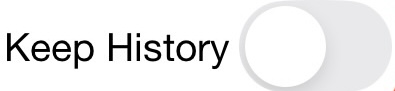
As the owner of a shared note, you can decide who has edit and who has read-only permissions. But, whether it is only you who can edit a particular note or others who can also edit, if you, as the owner, turn "History and Versioning" On for a Note (which can be done when the note is first created by sliding the "Keep History" switch to the right, or by pressing the icon at the bottom later), you can go back to any past version by pressing the icon and sliding one of the prior versions right and choosing "Make Latest". You can also see all prior versions of your note by pressing a prior verison (and delete any prior version by sliding it left and choosing "Delete") when in the History screen for a note.
How do I stop sharing a note?
You can stop sharing a note by following below: 1. If you are the owner of the note > Open the note you wnat to stop sharing > Tap the bottom 'sharing' icon > Find the user name who you want to stop sharing with > Slide left, and tap 'Withdraw sharing' > Click 'Yes' to the prompt 'Withdraw sharing?' > Hit 'close' at the top right and tap 'Yes' to Sync > When the recipient (user you withdrew sharig with) opens the app, it will atuo-sync and note will be deleted from the recipient's app. It inclues all the versions (if the note has version history and you are sharing version history).
💡 Security: The random password for the note you are sharing is automatically changed by Nandemo so that the user you have withdrawn permission from will have no ability to read future versions of this note (in the very unlikely event they are sophisticated enough to break into someone else's device and extract this information. This and the re-encryption of the shared note for everyone else you are still sharing with is seamless for everyone involved.) Nandemo is your most secure sharing app!
2.If you are the recipient of the note > Open the note you wnat to stop sharing > Tap the bottom 'sharing'icon > Tap 'Un-accept Sharing' > Tap 'Yes' to Sync
💡 Shared Notes View: The three-dots menu on the top right of the app, there's 'Shared Notes' -- Tap it, then you can see all the notes 'Shared With Me' and 'Shred By Me'. When done, tap three-dots menu to go back to your preferred view.
Version History
How do I turn on History for a note?
You can turn on History for a note by following below: 1. When you are creating a new note > Toggle the 'Keep History' button near the top right of the note
2. When you are viewing an already created note > Press at the bottom of the note. > Tap 'Turn It On Now' at the pop up prompt
How do I access a note’s version history?
Open the note whicn has its history setting on. At the bottom of the note, press . You can see the versions of the note. Slide left to delete, slide right to view or make a prior version the latest (i.e., go back to a prior version). You can also just tap a prior version to view it. When viewing a prior version, it is read only -- only the latest version can be changed. (So, to edit a prior version, slide right and have that be the latest version.)
Please refer to this page 🔗 in 'HISTORY AND VERSIONING' section for details.
How to revert a note to a prior version?
Please see below video how to revert a note to a prior version.
Pricing, Comparison
How much is Nandemo notes?
Please refer to this link 🔗 to see the plan and price.
 icon (unless you have changed and saved content which is shared with other users, in which case, your app will automatically attempt to immediately sync and notify the devices of those you have shared with so that they know the information has changed and so that, if you have allowed others to edit your note, that they are not editing on top of stale information). If you have multiple devices (e.g., an iPhone and an iPad), and you want a note or other content that you have not shared to be available on your other device, make sure you press 'sync' after you save your changes and then press 'sync' on your other device.
  '. If 'ON', it triggers screenshot protection in the preview screen whether in Category View or Classic View, and even if all the categories are collapsed.
  ' icon.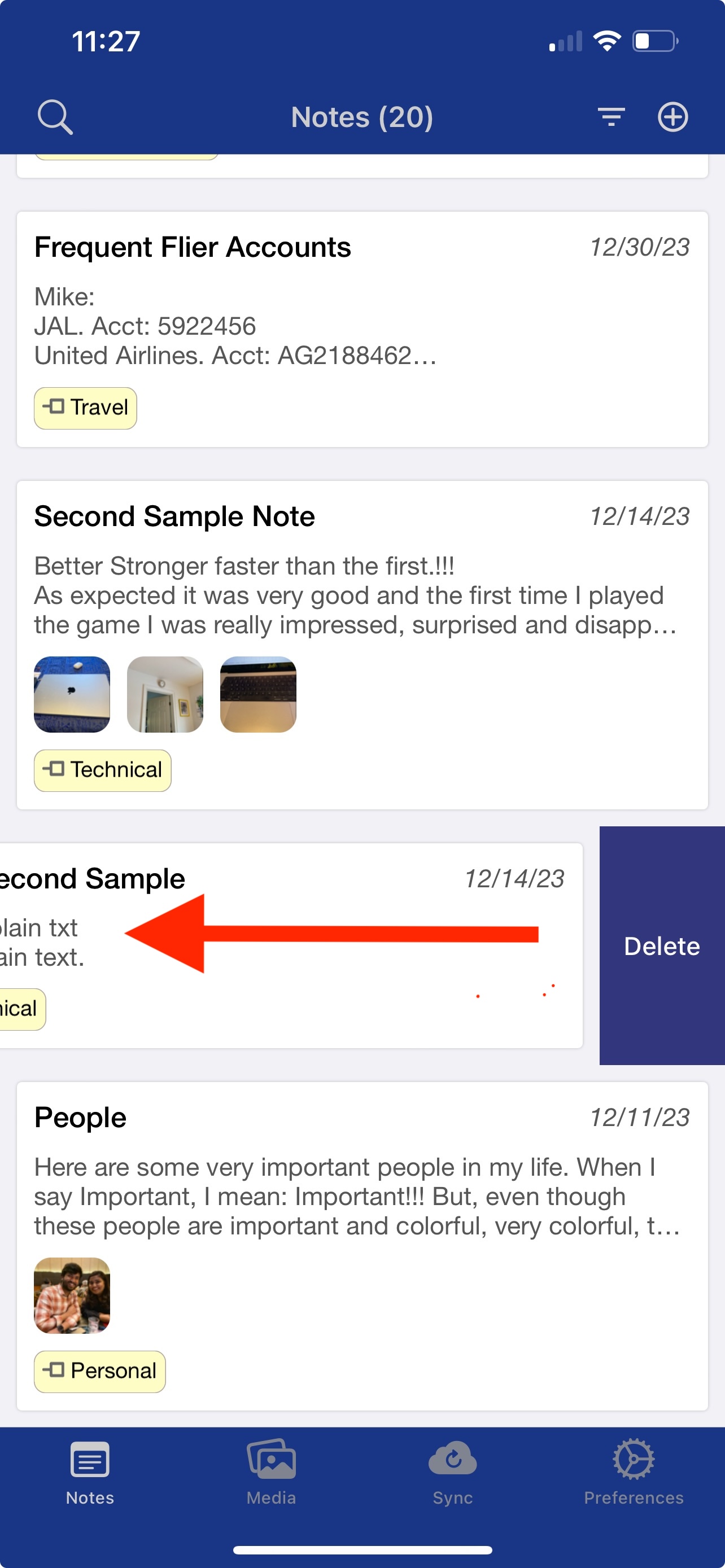
 at the bottom. Please refer to
  ).
). ). Thus, you can limit your Preview Screen, very effectively, to have notes from across your hierarchy that you wish to work with and jump back and forth among these notes.
 to see the options for how to organize your notes. Please refer above section for the details.
 icon at the bottom later), you can go back to any past version by pressing the